The NeuriEye guide · Android
Can your old Android phone run NeuriEye?
The app’s technical minimum is Android 6.0 (API 23). This is not a list of certified phone models: cameras, sensors and background restrictions differ between devices. Testing your own hardware is essential.
Requirements to check
- System: Android 6.0 or later, according to the app’s declared minimum. Google Play must offer installation for your device and tester account.
- Distribution: Google Play, a working Google account and access to the closed beta. No computer or ADB is required.
- Camera: a working camera and its Android permission. The flashlight and additional sensors depend on the hardware.
- Network: both phones need Internet access for pairing, live viewing and transfers. A copy already received may still be viewed locally.
- Power and storage: a phone in good condition, a suitable power supply and enough free space for photos and videos.
An older device that no longer receives system security updates remains a security trade-off. Avoid keeping other sensitive data on it unnecessarily. “Compatible” does not mean “still supported by the manufacturer”.
A practical five-step test
- Install and pair: follow the installation guide and check that the Sentinel appears.
- Test the camera: open the live feed, check the picture and try the other camera if you plan to use it.
- Test detection: trigger movement and check that you can actually view the resulting photo or video in the Journal.
- Test background operation: let the screen turn off and trigger another event. Also test reconnection after deliberately interrupting the network.
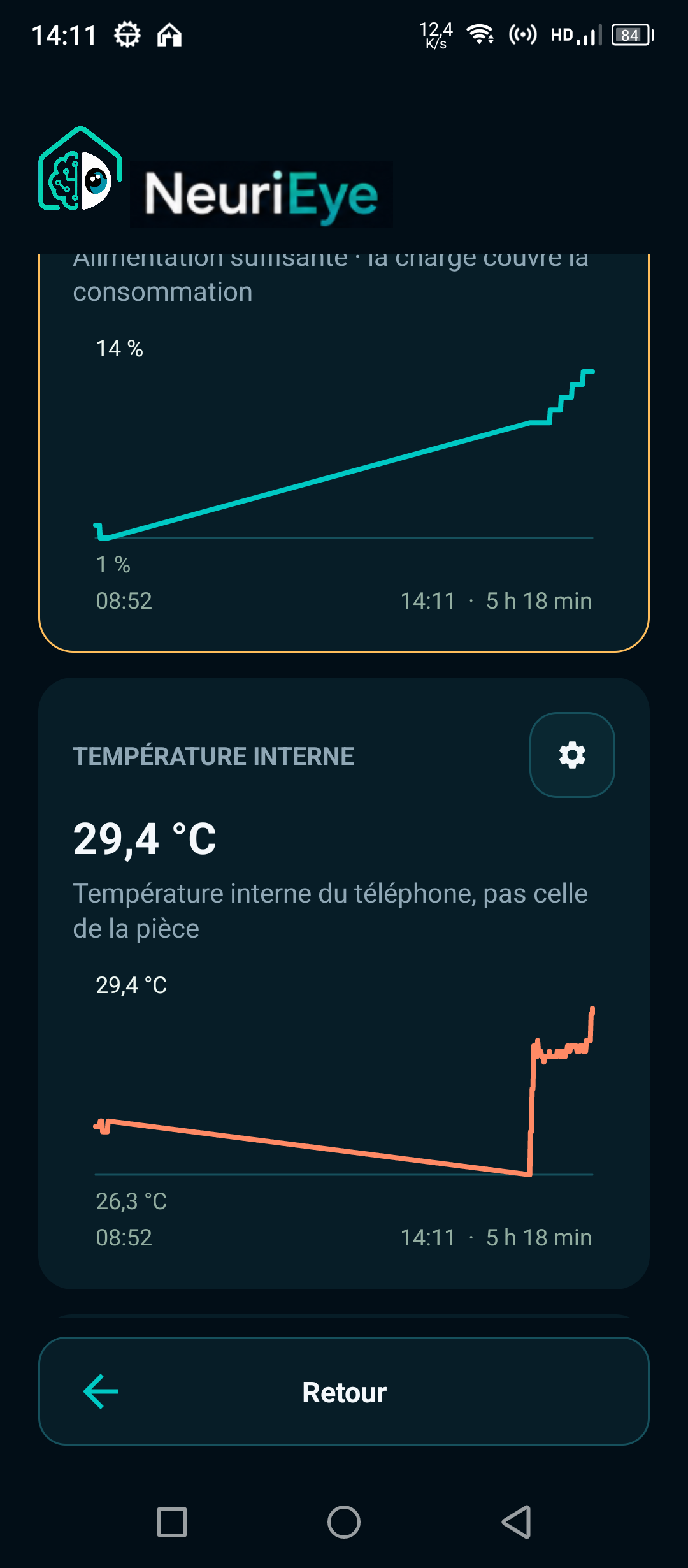
- Observe over time: watch temperature, battery and storage in your usual conditions, including evening lighting.
This is an initial check, not a certification. Repeat important scenarios after a system update or a change of phone.
What to check if something goes wrong
- The Sentinel does not appear
- Compare the Google accounts, connections and app versions on both devices. Keep the app open on the Sentinel to complete the first pairing.
- The live feed will not start
- Check that monitoring is enabled and has not been paused by a protection. Check camera and microphone permissions and open NeuriEye on the Sentinel. Avoid another app taking exclusive use of the camera.
- Alerts do not arrive
- Check the selected detection, NeuriEye notifications and background restrictions. Also check the Journal: receiving an alert and receiving media are two separate checks.
- The phone gets hot or the battery drains
- Review measurements and incidents, placement and power. Reduce demanding features, particularly long live sessions and PreBuffer. Do not try to bypass thermal protections.
- The Journal opens, but new media is missing
- You may be viewing a local copy. A disabled Sentinel does not synchronize its media; check its state and network before expecting new replication.
What to include in a bug report
Email [email protected] with your phone model, Android version, NeuriEye version, device role and the steps that reproduce the problem. Say whether the screen is on or off and whether you use Wi-Fi or mobile data.
Do not send passwords, invitation links or encryption keys. If a screenshot helps, hide accounts and private images. A precise report is more useful than repeatedly reinstalling the app and erasing evidence of the problem.