The NeuriEye guide · Android
Turn an old Android phone into a security camera
Before buying another camera, take a look in your drawer. With NeuriEye, a compatible Android phone can become a Sentinel: it detects activity and lets you check the live feed from your main phone. Here is how to prepare a useful setup and test it before relying on it.
1. Prepare your equipment
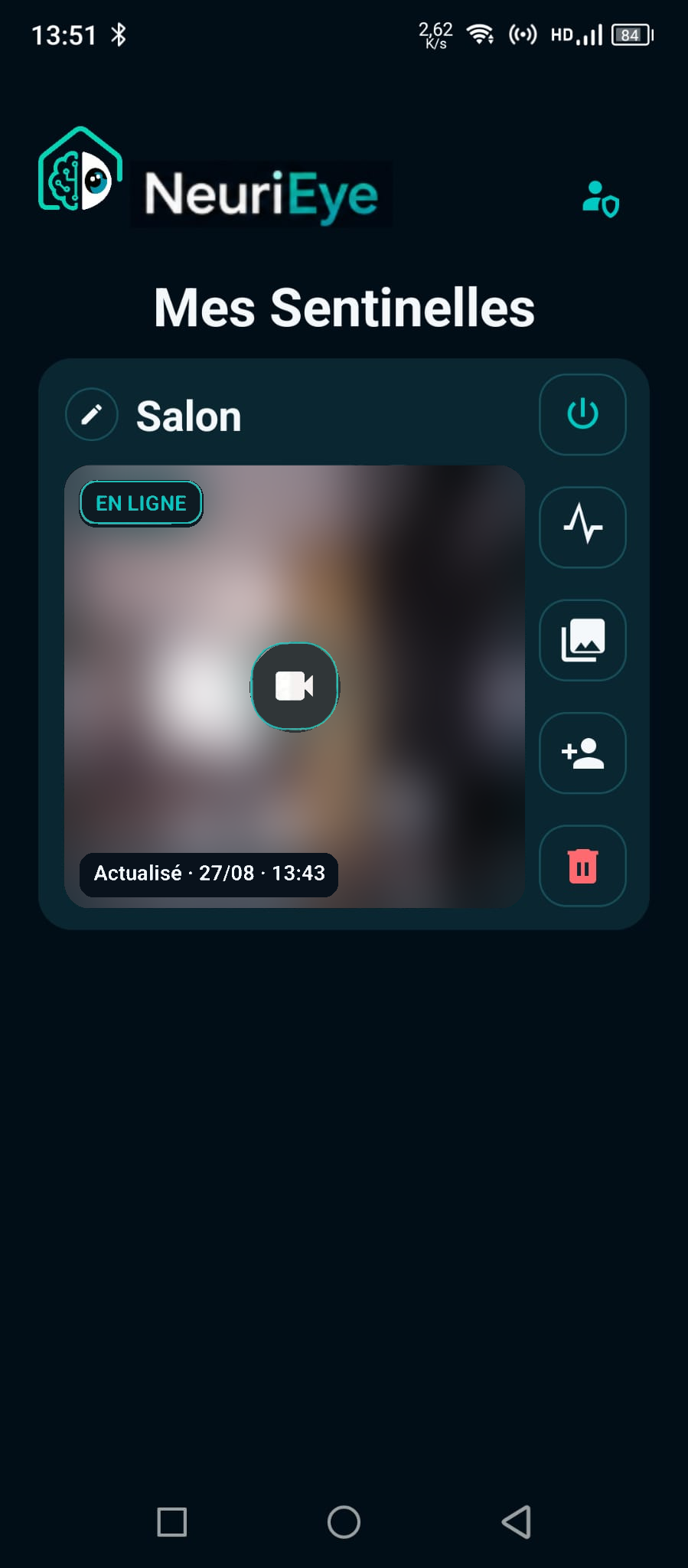
You need two compatible Android phones. The Sentinel stays in the place you want to monitor and uses its camera and sensors. The Viewer is your main phone: it receives notifications, displays the live feed and lets you review events.
Both phones need Internet access, Google Play and a Google account. For extended use, prepare a reliable power supply and a safe position for its cable. NeuriEye is currently distributed through a closed Google Play test: join the testing group, accept the test invitation and install through Play. Do not download an unofficial APK from another website.
Read the Android compatibility guide before setting anything up. Meeting the minimum Android version does not guarantee a stable camera, good battery health or reliable background operation.
2. Position the phone carefully
Use a stable support, keep the lens clear and secure the charging cable so it cannot pull the phone over. Start by framing a doorway or a specific passage. A focused view is easier to test than an entire room with several moving areas.
Avoid pointing directly at a bright window or an animated screen. Changing light can affect detection. Test during the day and in the evening using the lighting actually available in the room. An app does not turn a normal phone camera into an infrared night-vision camera.
Keep the phone ventilated, out of direct sunlight and uncovered. Do not use a damaged phone or battery for continuous monitoring. Software protections do not replace healthy hardware or a suitable charger.
3. Adjust detection to the real scene
Follow the installation guide to associate the phones with the Owner account. Enable monitoring, open the live feed and walk across the area at a representative distance. Check both the framing and the resulting event.
Motion detection has three sensitivity levels. Choose the setting that works in your room instead of immediately selecting the highest level. Configure the desired response: a photo, video or an alert. Repeat the test after changing the phone’s position.
When available and enabled, the optional PreBuffer retains five seconds of silent video before a detection. It helps show how an event started, but is not a promise of permanent recording. Temperature or battery protections can suspend it.
4. Test before you leave
- Open the live feed and check the framing.
- Trigger motion and find the event in the Journal.
- Play its photo or video: a notification alone does not prove that the media arrived.
- Repeat with the Sentinel screen off.
- Try the Viewer over mobile data, outside your home Wi-Fi.
- After a while, check battery, temperature and storage.
A network outage, power interruption or phone failure can interrupt the live feed or delay an event. NeuriEye is a beta application, not a certified alarm system or a substitute for human supervision in a safety-critical situation. Test your actual equipment and keep expectations realistic.